Robot anatomy
The six axes A1 to A6, joint and Cartesian coordinates, the base frame and the tool centre point.
kilau.app
Kirin is a browser-based robotics lab. Teach a six-axis robot, write its program, then run a two-robot smart-factory cell with conveyors, sensors and safety signals, all before you step into the lab.
Why Kirin
Lab time on a physical industrial robot is limited, and a first session goes much further when the basics are already familiar. Kirin gives every student a safe place to make mistakes: jog the axes, teach positions, write and run programs, and watch two robots coordinate a production line.
The simulators are simplified teaching tools built for the course. They focus on the concepts that carry over to any industrial robot: coordinate frames, motion types, signals and cell safety.
What you'll learn
Eight learning outcomes, built up one exercise at a time.
The six axes A1 to A6, joint and Cartesian coordinates, the base frame and the tool centre point.
Move the robot by hand in MANUAL mode, step by step, and teach the positions a program will use.
Point-to-point, linear, circular and spline motion: what each one does and when to use it.
Switch digital outputs, open and close grippers, run process tools and wait at the right moment.
Subprograms and loops that keep a robot program short, readable and reusable.
Sealing, arc and spot welding, grinding, packaging and machine tending, each with its own tool.
MASTER and SLAVE robots that share a table safely, using handshake signals and interlocks.
Conveyors, photo and proximity sensors, vision inspection, safety light curtains and cell layout.
Two simulators
A six-axis robot with a virtual teach pendant. Jog it, teach it and program it the way you will in the lab.
Guided exercises
Two robots, a conveyor and the signals that keep them safe. Design the cell, program both robots and watch production run.
Scenarios
How it works
Use your student ID and the password from your lecturer. Nothing to download or install.
Start a project for an exercise, or practise freely without saving anything.
Your work saves as you go. Continue on another laptop, a tablet or your phone.
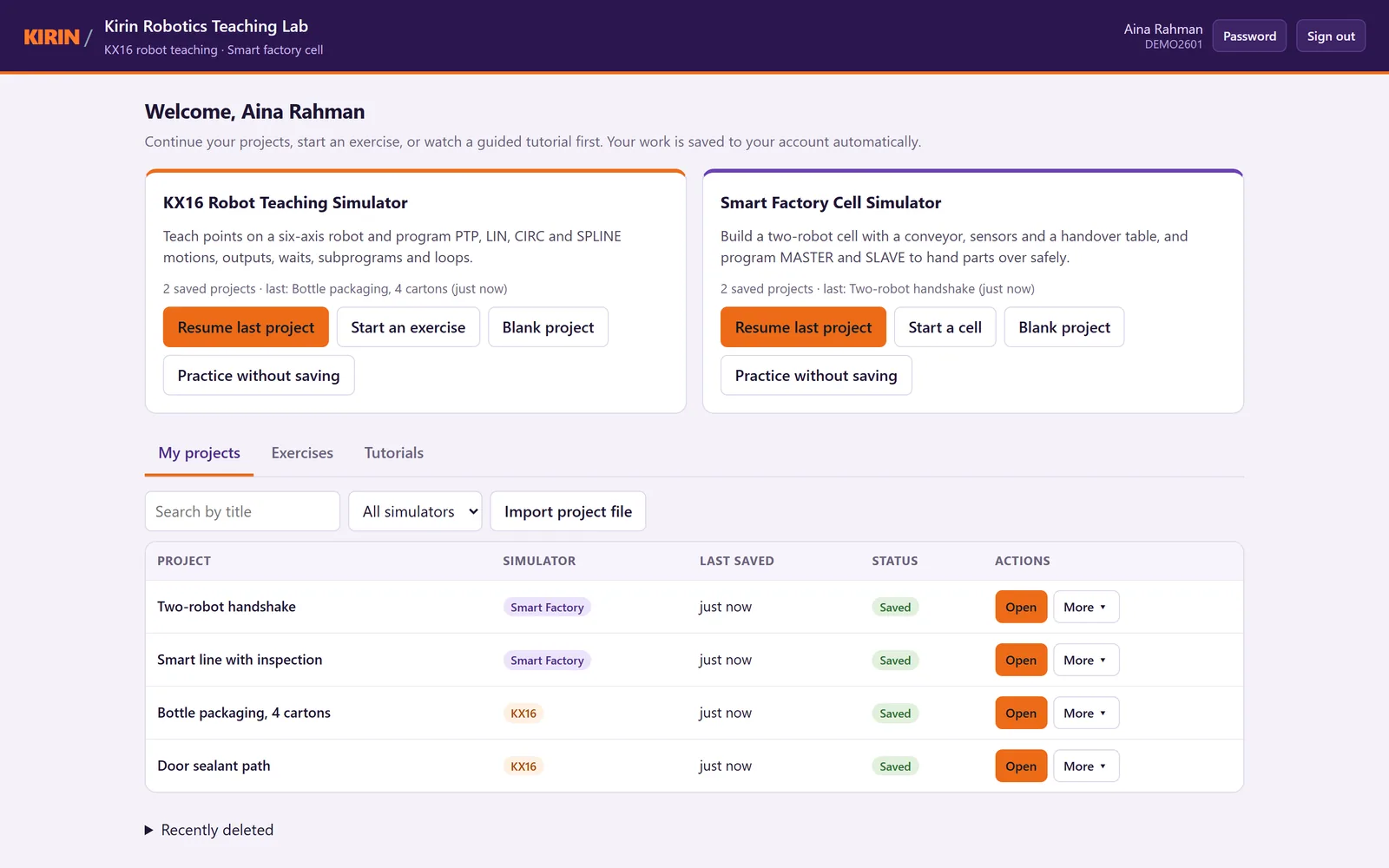
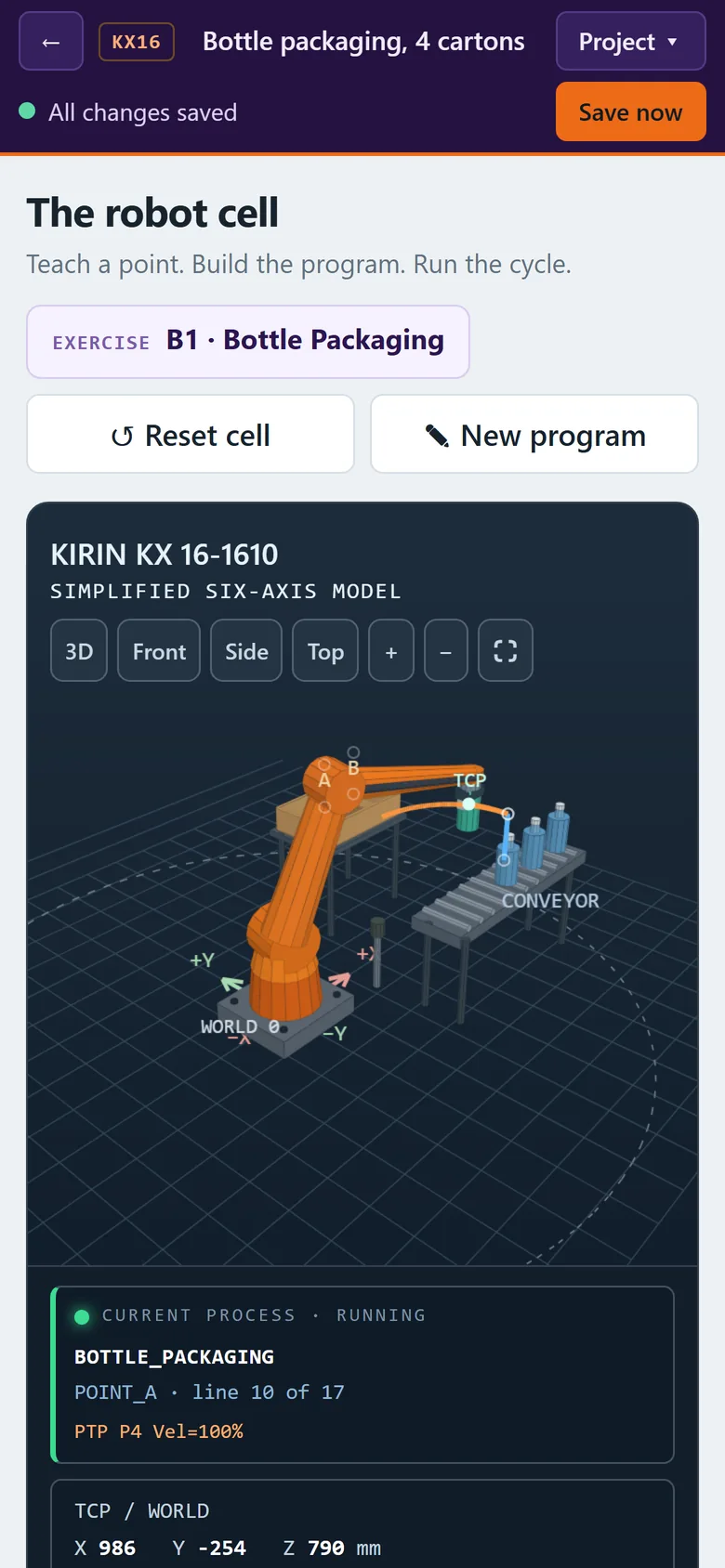
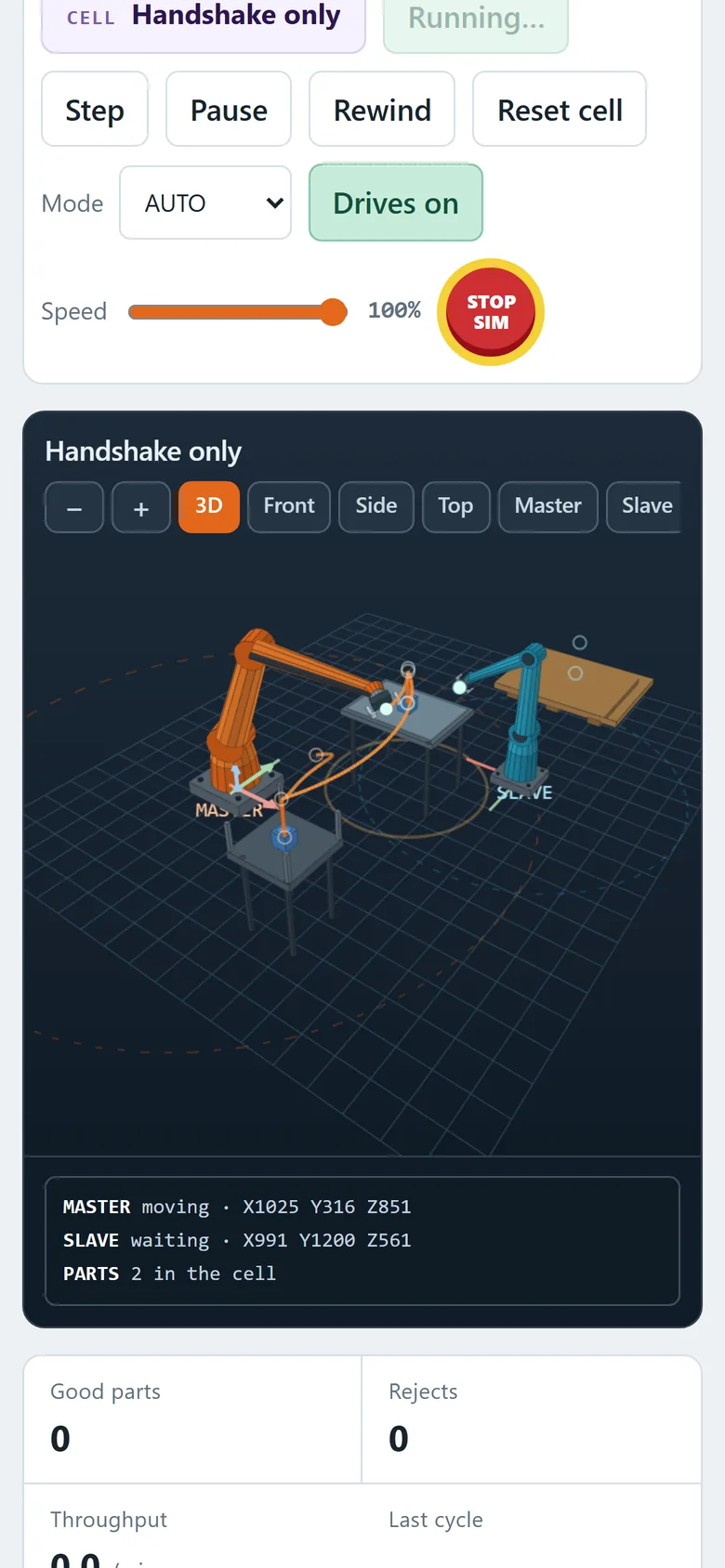
Work is kept through a reload, a closed tab, a lost connection or a server restart.
Look back at earlier versions of a project and restore one with a click.
Open the same project on two devices and Kirin stops one from overwriting the other.
Download a project file to keep a copy, or bring one back in later.
Every page adapts to phones and tablets, with touch controls and pinch zoom in the factory view.
Each student sees only their own work. The simulators are available only after sign-in.
For lecturers
A dashboard for running the course: accounts, progress and student work in one place.
Questions
No. Kirin is a simplified educational simulator made for teaching. It is not affiliated with or endorsed by any robot manufacturer, it is not a controller emulator, and it cannot connect to or control real equipment. Its program notation resembles industrial robot languages so that the concepts carry over.
No. Kirin runs in any up-to-date browser on a laptop, tablet or phone. The simulation runs on your own device, so it stays smooth even with a whole class online.
Accounts are created by your lecturer for students enrolled in the course. Sign in with your student ID and the password you were given. If it is a temporary password, you will be asked to choose your own.
Yes. Changes are kept on your device first and sent to the server as soon as it can be reached. The status in the top bar always shows whether everything has been saved.
Access is limited to enrolled students and teaching staff. For a demonstration, contact the course lecturer.
Sign in, open the KX16 simulator and start with exercise A1, the door sealant path.
Sign in to the lab